


Messages - SMS, Chat Messaging
4.61.95K Reviews
App Specs
- Version
- 2.3.0
- Updated On
- License
- Free
- Downloads
- 1,000,000+
- Developer
- Phase Zero Apps
- Categories
- Communication
- Platform
- Android
Screenshots
 Analysis by AppCompare
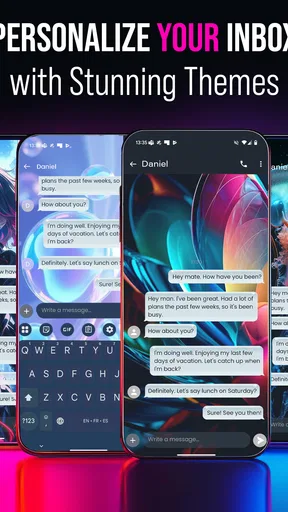
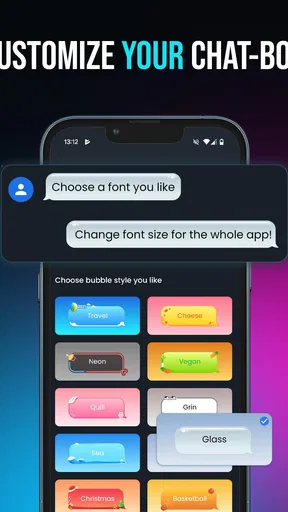
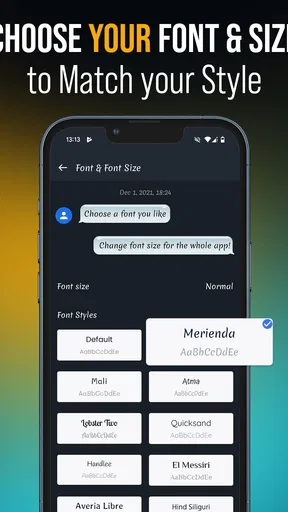
I approached Messages - SMS, Chat Messaging as a replacement for the ordinary texting app rather than as a full social platform. That distinction matters. Its appeal is mainly in making everyday SMS conversations feel more personal, with stylish fonts, themes, and an after-call feature gathered around the messaging experience. I found it most interesting for people who still rely on regular texting but want more control over how their conversations look and feel.
The app comes from Phase Zero Apps and is free to install, with optional in-app purchases ranging from $3.99 to $23.99 per item. It is intended for everyone, runs on devices using Android 10 or later, and has reached over a million installs. Its current version is 2.3.0, while the app first appeared on February 10, 2022. Those details place it in a practical middle ground: established enough to have a substantial user base, but still focused on a fairly specific job instead of trying to replace every communication service at once.
Where the everyday experience can become confusing
The first thing I would tell a new user is not to judge the app by its visual customization alone. A messaging app has to fit into the phone’s existing SMS system, and that creates more practical considerations than choosing a font or theme. You need to know which app handles incoming texts, whether notifications are arriving from one app or two, and whether a conversation is being sent through ordinary SMS or another messaging route.
This is where people can get stuck. A new messaging app may look ready immediately after installation, yet the phone can still treat the previous app as the main handler for messages. In that situation, Messages - SMS, Chat Messaging may open normally while new texts continue appearing elsewhere. That is not necessarily a defect in the app; it is often a sign that the phone has not fully switched the default messaging role.
I also paid attention to the difference between appearance and delivery. A theme or font changes what you see in the app, but it does not change how a mobile carrier transports an SMS. If a message is delayed, fails to send, or arrives without the expected response, the decorative options are rarely the reason. Keeping that separation in mind prevents a lot of unnecessary tinkering.
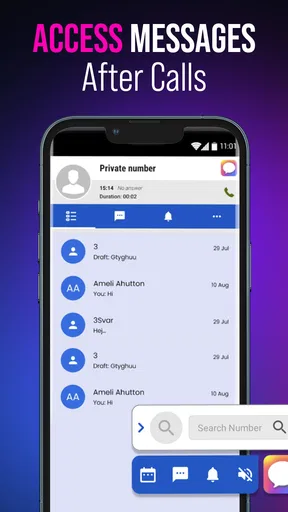
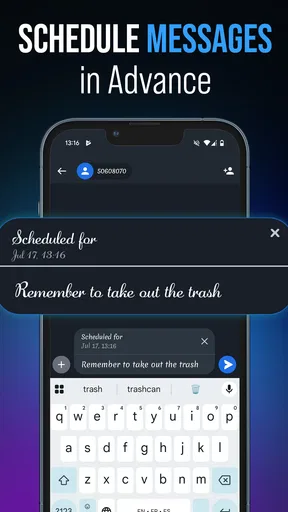
The after-call feature is another area where expectations should stay realistic. It can make the transition from a phone conversation to a text-based follow-up more convenient, especially when you need to send a quick reminder after hanging up. However, it should be treated as part of the app’s messaging workflow, not as a replacement for the phone service itself. The call still depends on the device and carrier, while the app helps with what happens around the conversation.
What I would check before changing the look
My suggested order is simple: get basic texting working first, then personalize the interface. Send a short test message to someone you know, receive a reply, and confirm that the conversation appears in the expected thread. Only after that would I spend time exploring fonts and themes. This approach makes troubleshooting much easier because you know whether a later problem is related to the message system or merely to presentation.
Worth Reading Before You Choose

EA SPORTS FC Mobile 26 Is a Bigger Football Game, but It Takes Time

Flipboard Shows What News Apps Must Do Beyond the Feed

Switching to Android Auto Means Rethinking Your Driving Routine

Google Calendar Makes a Crowded Week Easier to Manage

Ludo King Makes the Most of the Minutes Between Plans

Baby Panda World Brings Quick Play to Modern Phones, but Its Game Library Feels Busy
I would also avoid switching back and forth between messaging apps during the first few minutes. When two apps are competing for attention, notifications can feel duplicated or inconsistent. Pick Messages - SMS, Chat Messaging as the app you want to test, complete a small conversation, and then decide whether its workflow suits you. That is more reliable than opening several apps and trying to compare them while messages are arriving.
For someone who receives many messages, the visual options can be useful in a surprisingly practical way. A calmer theme and a readable font may make long threads easier to scan, particularly when the phone’s standard messaging interface feels plain or cramped. I would not choose a decorative style that reduces legibility, though. A message app is used quickly, often one-handed, and readability matters more than novelty.
Setup checks that prevent most early problems
Because this is an SMS-focused communication app, the setup process is less about creating a new online identity and more about making the phone recognize the app as part of its messaging routine. I would begin by opening the app and looking for the phone’s default messaging selection if the system presents one. If incoming messages still appear in the old app, I would revisit that system setting rather than reinstalling immediately.
Next, I would check notifications at the phone level. A messaging app can be installed correctly and still seem silent if notifications are disabled, minimized, or restricted by the device. The useful test is to send a message from another phone and watch what happens while the screen is locked and unlocked. That tells you whether the issue is delivery, notification display, or simply the way the conversation is being viewed.
I would also confirm that the intended SIM or mobile line is active before blaming the application for failed sending. This is especially important on phones with more than one line. A message can be associated with the wrong outgoing line, or the selected line may not have service at that moment. The app is the place where you compose the text, but the carrier connection remains essential to delivery.
Another sensible check is storage and general phone responsiveness. If the device is nearly full or behaving slowly in other apps, message threads may open late and notifications may be delayed. In that case, clearing space and restarting the phone is more useful than repeatedly changing themes. I prefer this basic check because it distinguishes an app-specific problem from a wider device problem without requiring complicated steps.
How to test the app without creating confusion
I recommend using one familiar contact for the initial test. Send a normal text, wait for a reply, close the app, and then open the conversation again. After that, try the same exchange with a second contact. This small sequence checks sending, receiving, thread continuity, and notification behavior without involving a large group conversation or an urgent message.
Once the basics work, try the after-call workflow with a non-urgent conversation. End a call, open the messaging option, and make sure the intended contact is selected before sending anything. That extra glance is worthwhile because convenience features can encourage faster actions, and a quick confirmation helps prevent sending a follow-up to the wrong person.
For customization, I would change one visual element at a time. Start with the font, use the app for a while, and then try a theme if needed. If the interface becomes harder to read, you will know which change caused it. This is a better method than applying several styles at once and then trying to remember what the original arrangement looked like.
The app is free to use, but optional purchases are part of the experience. I would spend time with the basic version before buying anything. The right question is not whether a premium visual option looks attractive in a preview; it is whether you will still value it after the novelty wears off and you are using the app for routine conversations. That is particularly important when your main reason for installing the app is simply to replace a plain default interface.
Recovering a workflow when messages seem to disappear
When a message appears to be missing, I would first inspect the conversation list and search for the contact rather than assuming the thread was deleted. A changed contact name, a new number, or a different conversation view can make a familiar exchange harder to spot. If the thread is present but notifications are absent, the problem is probably not message storage; it is more likely a notification or default-app setting.
If sending fails, I would retry only after checking the signal and the selected mobile line. Repeatedly pressing send can create uncertainty about whether one copy went through. A better recovery habit is to wait briefly, look for the message status shown by the app, and then confirm with the recipient through another channel if the matter is important. That advice applies especially to time-sensitive information, where assuming delivery is risky.
Switching between messaging apps can also make a conversation look incomplete. One app may show a thread that another app has not refreshed in the same way, particularly immediately after changing the default. My practical solution would be to choose one app, open the relevant thread there, and send a harmless test message. If the exchange works consistently afterward, the earlier confusion was likely caused by the transition rather than permanent message loss.
For a more organized recovery, I would use this order:
Check whether the conversation exists in the message list or through contact search.
Confirm that Messages - SMS, Chat Messaging is the app receiving new messages.
Test notifications with a new incoming text.
Check mobile service and the outgoing line before retrying a failed message.
Restart the phone only after the simpler checks have been completed.
This sequence avoids the most disruptive response, which is uninstalling the app before understanding the problem. Reinstallation may remove the visible cause temporarily while leaving the actual issue untouched, especially if the carrier connection or phone settings are responsible.
Useful habits for the after-call feature
I found the after-call idea most useful when a phone conversation creates a small action item: confirming an address, sending a reminder, or following up on something that was too awkward to type during the call. The best habit is to keep the follow-up short and check the recipient before sending. It is a convenience step, not a reason to rush through the rest of the messaging process.
I would also avoid relying on it for information that needs a guaranteed response. The feature can help you compose a follow-up, but the recipient may not read it immediately, and SMS delivery does not guarantee that the other person has seen the text. For appointments, travel changes, or anything important, I would send the message and then use a direct call or another confirmed channel when a response truly matters.
When the app is not the cause
It is easy to blame the messaging interface because it is the part you can see. In reality, an SMS exchange depends on several layers: the phone, the active line, the carrier network, the recipient’s device, and the app displaying the thread. If a recipient never receives a message, the app is only one possible point in that chain.
Carrier outages, weak coverage, an inactive line, or a recipient’s full or unavailable device can all produce similar symptoms. The most useful comparison is whether other phone functions are also affected. If calls fail and other messages are delayed, I would investigate the mobile connection first. If only notifications from this app are missing while messages appear after opening it, I would focus on notification settings instead.
The same principle applies to group conversations. A group thread can behave differently from a simple one-to-one exchange because several devices and carriers are involved. I would test direct messaging before concluding that the app cannot handle the conversation. If individual texts work but a group exchange does not, the problem may relate to the group setup or the participants’ phone services rather than the app’s basic operation.
Privacy expectations also deserve a clear distinction. Stylish fonts and themes affect presentation, not the underlying nature of ordinary SMS. I would not choose this app because I expect the visual design to provide the same protections or communication model as a dedicated internet messenger. If your priority is encrypted chat, rich media collaboration, large communities, or cross-platform identity, a specialized messaging service may be a better fit.
Likewise, people who need a very minimal interface may find the customization unnecessary. The app’s appeal comes from adding personality to texting. If you prefer the fewest possible controls and want the phone’s standard messaging behavior without visual choices, the default app may be more comfortable. That is not a weakness for everyone; it is a matter of matching the tool to the way you communicate.
How it compares with ordinary alternatives
Compared with a phone’s built-in SMS app, Messages - SMS, Chat Messaging is more appealing when appearance matters. Fonts and themes give it a stronger sense of personal control, and the after-call workflow adds a useful bridge between voice conversations and texting. The trade-off is that another layer of customization can mean more decisions, and some users may prefer the predictability of the preinstalled option.
Compared with internet-based chat services, it stays closer to traditional texting. That makes it convenient for contacts who do not use the same chat platform, but it also means you should not expect every feature associated with modern online messengers. If your conversations revolve around media sharing, synchronized desktop use, large groups, or active online presence, an internet messenger will usually be the more natural choice.
The app’s audience is therefore quite specific. It suits someone who wants a more expressive SMS interface, uses voice calls and follow-up texts together, and is willing to check a few phone settings during setup. It is less suitable for someone seeking a complete chat ecosystem or someone who wants communication to remain entirely untouched by customization.
My practical verdict after using it
My overall impression is positive, with a clear condition: Messages - SMS, Chat Messaging works best when you view it as a personalized SMS tool rather than a universal communication replacement. The 4.6 average from around 19 thousand ratings and roughly 2 thousand written reviews suggests that many users appreciate its approach, while its audience of over a million installs shows that the idea has reached beyond a small niche.
I would recommend it to a friend who finds the standard messaging app dull, wants more readable or distinctive conversations, and likes the idea of sending a quick follow-up after a call. The free entry point makes it easy to test, and the Everyone age rating keeps it broadly accessible. I would still spend several days with the basic experience before considering any optional purchase, because the real value is in whether the workflow feels natural during ordinary texting.
My main caution is setup discipline. If you install it and immediately assume it controls every message, you may become frustrated when the previous app still handles notifications or when a carrier issue interrupts delivery. Set it as the intended messaging app, test a direct exchange, verify notifications, and then explore the visual tools. Those steps make the experience much clearer.
I would skip it if you need encrypted online chat, advanced collaboration, or a service designed around a shared account across many devices. I would also skip it if you strongly prefer the simplest possible interface and never use SMS customization. For everyone else, especially people who still text frequently and want their messaging screen to feel less generic, it is a worthwhile free experiment.
The most useful way to approach this app is to separate reliable texting from visual personalization. First make sure the phone, mobile line, notifications, and default-app setting are working together. Then choose a font or theme that improves your daily reading instead of merely looking impressive for a few minutes. Used that way, Messages - SMS, Chat Messaging offers a practical change to a familiar habit without pretending to be something it is not.
Pros
- Simple interface makes sending SMS and chats quick to manage.
- Supports group conversations for keeping multiple contacts connected.
- Conversation search helps locate older messages faster.
- Notification controls reduce interruptions from less important chats.
- Works well as a practical everyday messaging hub.
Cons
- Some features may depend on your carrier or device compatibility.
- Large group chats can become difficult to organize over time.
- SMS messages may incur carrier charges without an unlimited plan.
- Advanced customization options may be limited compared with rival apps.
- Using chat features can require an internet connection.
FAQs for Messages - SMS, Chat Messaging
What is Messages - SMS, Chat Messaging used for?
Messages - SMS, Chat Messaging is designed for sending and receiving traditional SMS and MMS messages, while also supporting modern chat-style conversations. Depending on your carrier, device, and enabled services, you may be able to share text, photos, videos, emojis, and other media. It can also help organize conversations in one place and provide a more familiar messaging experience.
Does Messages - SMS, Chat Messaging require an internet connection?
An internet connection is generally required for chat-based features, such as sending messages through online services or sharing media using mobile data or Wi-Fi. Traditional SMS messages may work without internet access, although your mobile carrier can still charge standard messaging fees. Availability and behavior may vary depending on your phone, SIM card, carrier, and account settings.
Can I use this app as my default messaging application?
On compatible Android devices, Messages - SMS, Chat Messaging may be selected as the default SMS application, allowing it to handle incoming and outgoing text messages. You normally grant the app permission to access SMS, contacts, notifications, and media. iOS users should check Apple’s system limitations, because third-party apps cannot always replace the built-in Messages app for standard SMS.
Is Messages - SMS, Chat Messaging safe and private to use?
The app may request access to sensitive information, including contacts, SMS conversations, notifications, photos, and phone-related permissions, because these are needed for its main functions. Before installing, review the permissions and privacy policy carefully. Message privacy can also depend on whether you are using carrier SMS or an internet-based chat feature, as encryption and data handling may differ.
Can I send photos, videos, group messages, and other attachments?
The application may support multimedia messages, group conversations, emojis, and file or image sharing, but the exact options depend on the version installed, your device, and your carrier’s SMS or MMS configuration. Large attachments can consume mobile data or fail when network settings are restricted. For reliable sharing, connect to Wi-Fi and confirm that MMS or chat features are enabled.


